This guide is broken down into 2 sections. The first section is Salesforce config, which you will want to confirm before setting up Arovy's Integration Blueprint.
Section 1: Items to check before starting the Integration Blueprint configuration
1. Find out who the sync user is for your production environment

2. Find out the profile that user has

3. Open the sync user profile in Setup

4. Confirm that “View event Log files” and “View Real-time Event Monitoring Data” are enabled

5. Navigate to “Event Monitoring Settings” in setup

6. Confirm that “Generate event log files” is enabled
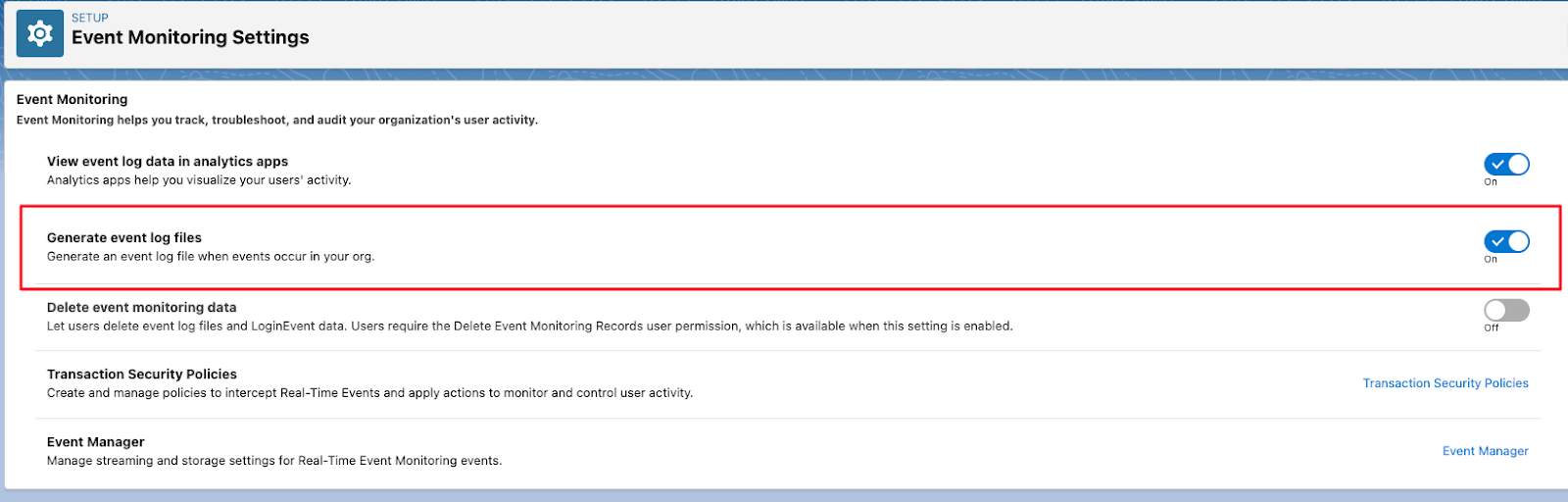
7. Navigate to “Event Manager”

8. Ensure that "Streaming Data" and "Storing Data" are ENABLED for the "API Event" and "Bulk API Result Event".
Section 2: Integration Blueprint configuration steps
1st step:
In the Arovy application, navigate to Settings> Integrated Apps> Edit Objects.
- This is for writing only. Arovy will track all the reads even if the object isn't monitored.
- Depending on the package you have purchased from Salesforce, Salesforce limits the number of objects that can be monitored. The smallest package comes with five objects.
- Available Entities search in Salesforce is based on the API name, not the display name.
- These settings can also be managed via "Change Data Capture" from Salesforce setup.
Navigate back to the Arovy Integrated Apps tab in the Arovy application, and click "Refresh Objects"
You can access the Pulse Overview section via the sidebar navigation and see a complete list of all detected applications. To drive in further to that application, select "Investigate".
- These apps are predicated on using an integration user; this does not need to be Salesforce's new integration use license type. It can be a traditional Salesforce license. But it does need to be dedicated to the application. The mapped data will be inaccurate if multiple applications use the integration user.
- When multiple applications are using the same integration user, we recommend bucketing these. for example, if multiple data platforms are using the same integration user, create an application called "data platforms". You will not be able to distinguish the exact traffic for each application, but this can help give a better understanding of external usage.
- Object & Field Usage activity is the duration Arovy will keep the read by and populated for each field. i.e. if Object & Field Usage activity is set to 7 days, on the 8th day that a field was not read or populated the application marker will no longer display forthat field.
Step 5.
Data will populate automatically as each integration calls the customer's Salesforce environment.
Comments
0 commentsArticle is closed for comments.